



|
|
|
Home | Products | Buy | Downloads | Contact |
|
|||||||
Sign up an email tracking account at TrackMsg.com.
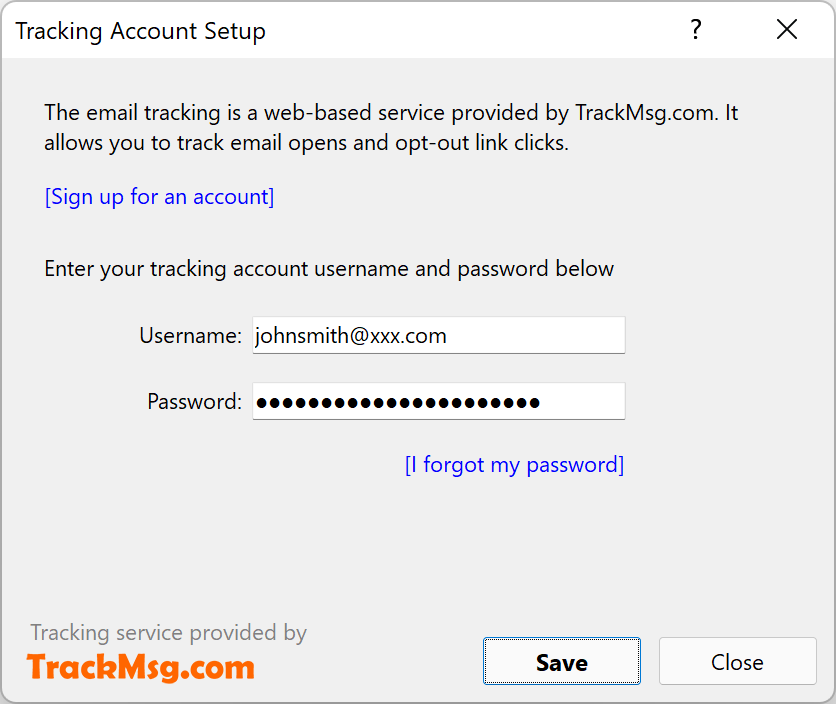
In e-Campaign Version 19, click menu Tracking Service -> Tracking Account Setup
Then enter the username and password received from TrackMsg.com

To track email open, click menu "Tracking Service -> Track Email Opens" on the Message Composer.
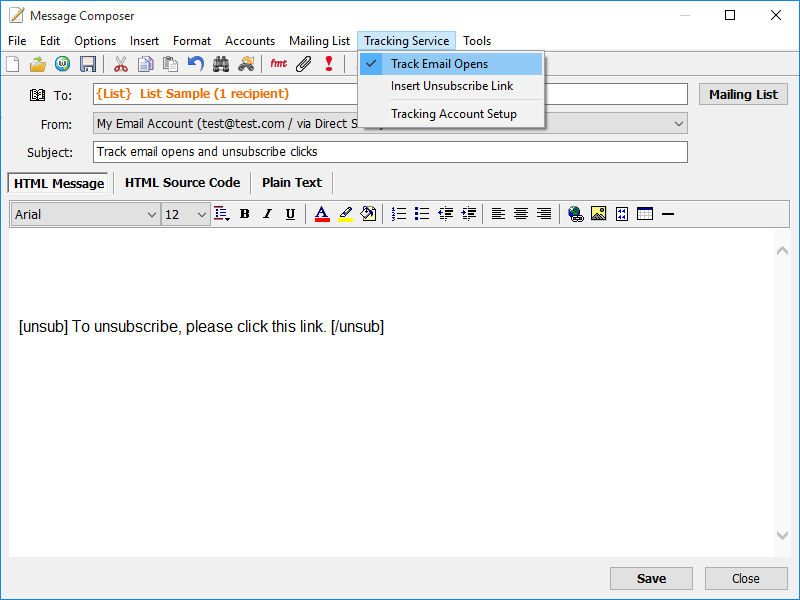
To insert an opt-out (unsubscribe) hyperlink, click menu "Tracking Service -> Insert Unsubscribe Link" on the Message Composer (see the above picture.)
You can edit the text between the marks [unsub] and [/unsub]. This text will be hyperlinked in the final email messages.
When the recipient receives your email, it will look like this:
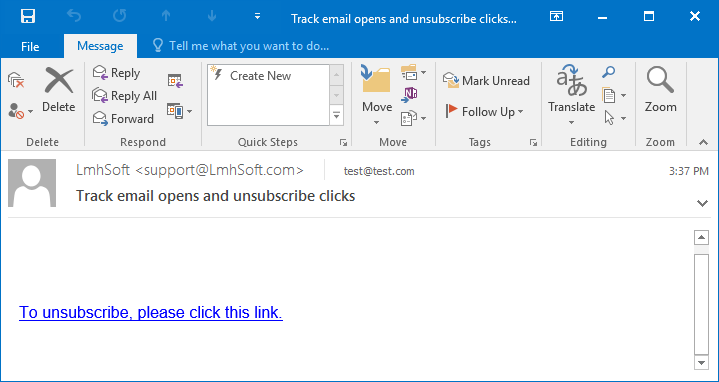
If he/she decides to unsubscribe, simply click at the link. And the recipient will be shown the following webpage:
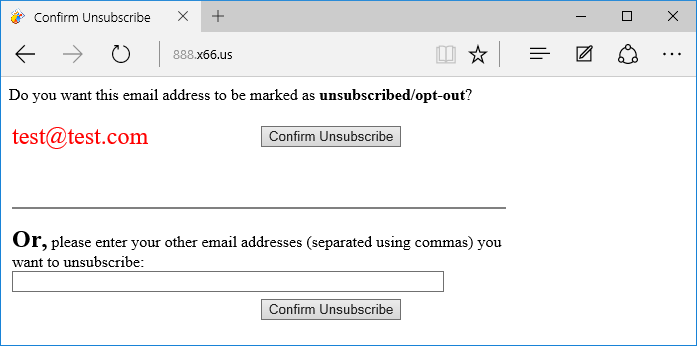
Click at the "Confirm Unsubscribe" button. The whole unsubscribe process is completed.
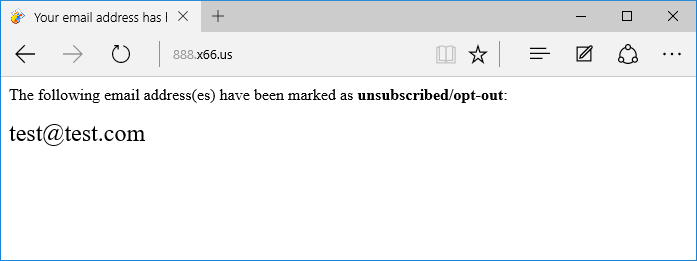
The collected unsubscribe (opt-out) email addresses will be automatically downloaded from TrackMsg.com servers by e-Campaign, and excluded from future mailing jobs.
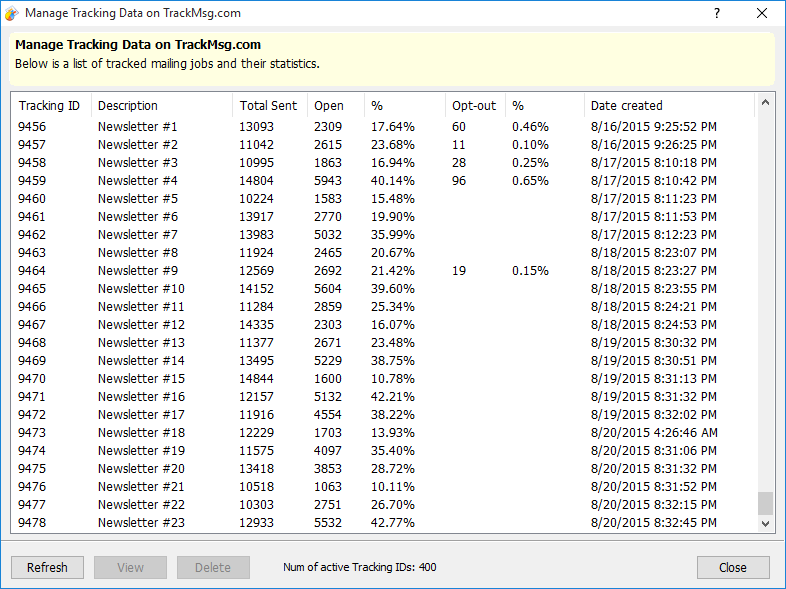
To view the open and unsubscribe data, click menu "Tracking Service -> Manage Tracking Data" from the main window.
You will see the open and opt-out numbers and rates.
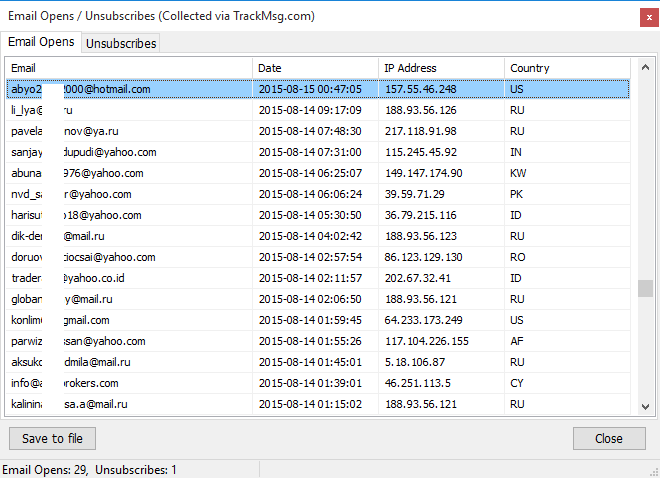
To view who read the message, double-click at the item in question.
See also:
e-Campaign FAQs
Screenshots
 Home
| Products
| Downloads
| Buy
| Contact Home
| Products
| Downloads
| Buy
| Contact
|
© 2026 LmhSoft  |